Docs Start
Getting started
Create an account, make your first map, put a location on it and get it onto your website.
Create your account
#Sign up
Press Sign in with Google or Sign in with GitHub. Or press Continue with email, fill in Email, Password (8+ characters) and Confirm password, and press Create account.
Confirm your email
Open the link we email you, press Confirm email, then Go to your maps.
Until you confirm, nothing saves. No email? Press Send a new link in the banner at the top of the dashboard. Links last 24 hours and work once.
Create a map
#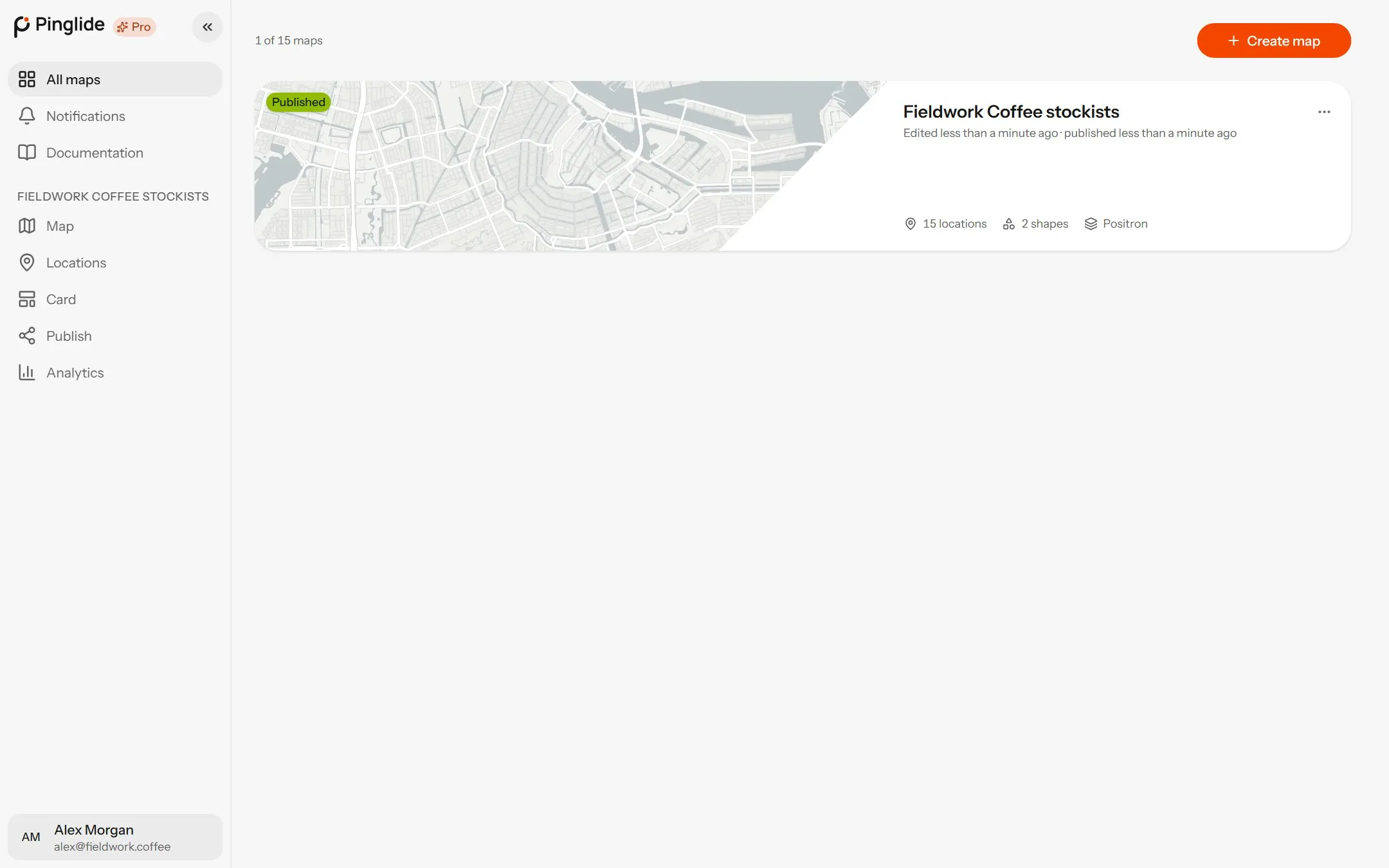
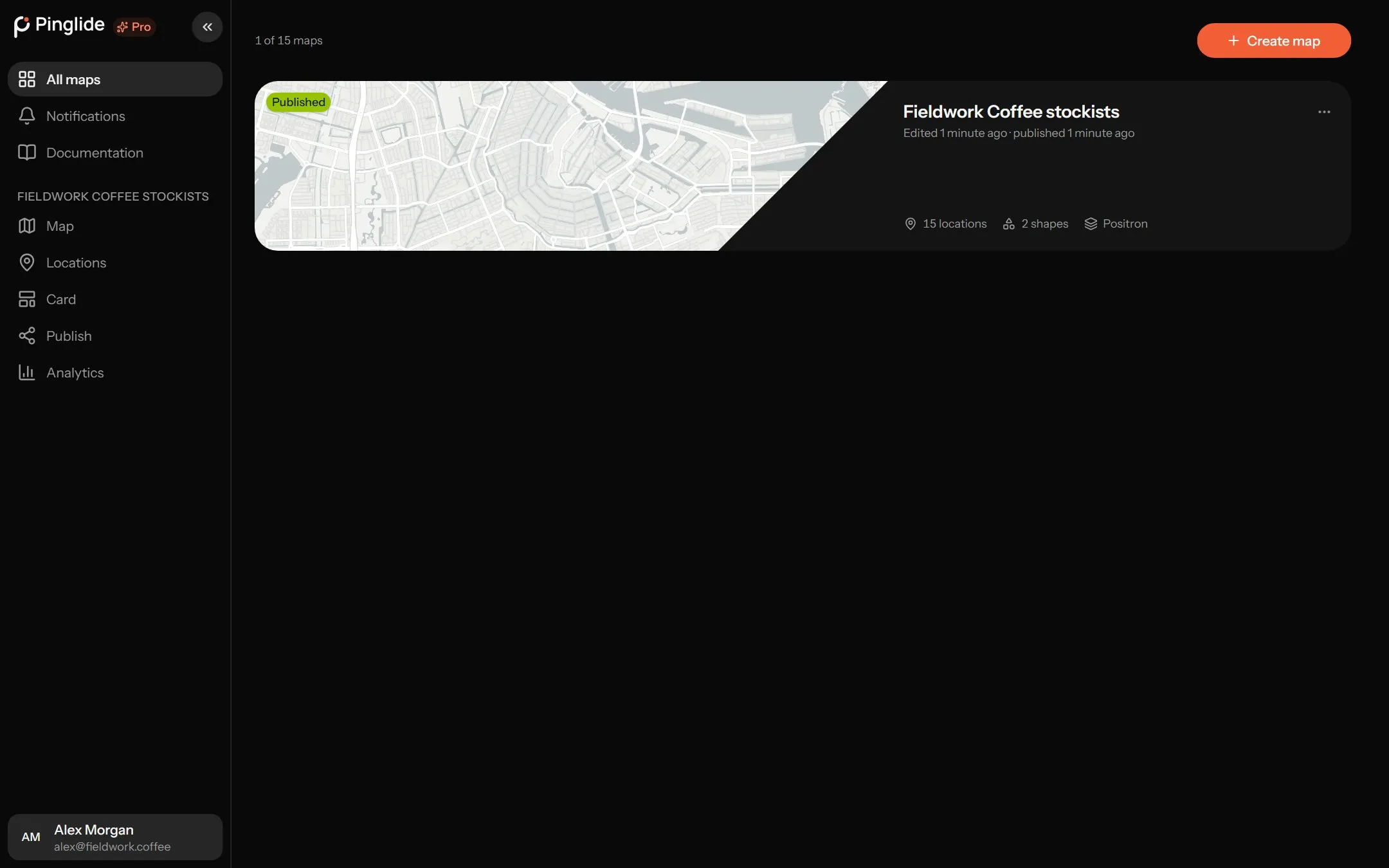
Press Create map
On Maps, press Create map, name it and press Create map again. Visitors never see the name.
You land in the editor
It opens on the Auto style, light or dark to match whoever is looking.
Free includes one map — see Plans and billing.
Find your way around a map
#Every map has five tabs in the sidebar, each with its own guide.
| Tab | What it is for |
|---|---|
| Map | Add, move and group locations, draw shapes and routes, and set the look. The map editor |
| Locations | Search, filter, edit and import locations. Managing locations |
| Card | What a visitor sees when they open a location. Designing the card |
| Publish | How the map on your site behaves, and the code to put it there. Publishing and embedding |
| Analytics | What visitors did with your published map. Starter and Pro. Visitor analytics |
Add your first locations
#Two ways, which you can mix:
- One at a time. On the Map tab, press the pin button and click the map, or search with Find an address. See Adding locations.
- All at once. On the Locations tab, Import locations from a spreadsheet, XML feed or Google Sheet. See Importing locations.
Then add phone numbers, hours and photos — Editing a location.
Publish and put it on your site
#Publish
On the Publish tab, set up the results panel, search and colours, then press Publish.
Copy the embed code
Press Get embed code, then Copy embed code.
Paste it into your page
Paste it where the map should appear, using your website builder’s Embed, Custom code or HTML block.
You paste once. After changes, press Publish again and your site updates by itself. Views are unlimited on every plan.
Where to go next
#- Colour-code locations and add filters — Tags, pins and groups.
- Mark delivery areas or draw a route — Shapes and routes.
- Keep the map in step with a spreadsheet — Google Sheets sync.