Docs Build
Tags, pins and groups
Sort your locations with tags, give them pins in your own colours or with your logo, and keep a big map tidy with groups.
Which one do you want?
#| What it is for | Visitors see it | |
|---|---|---|
| Tags | Saying what a location offers — “Sells bikes”, “Open Sundays”. The first tag colours the pin. | Yes, on the card |
| Pins | How a location’s marker looks — your colours, a shape, an icon or your logo. | Yes, on the map |
| Groups | Keeping your list tidy, and colouring or changing many pins at once. | Only as the colour of the pins and shapes in it |
Setting up tags
#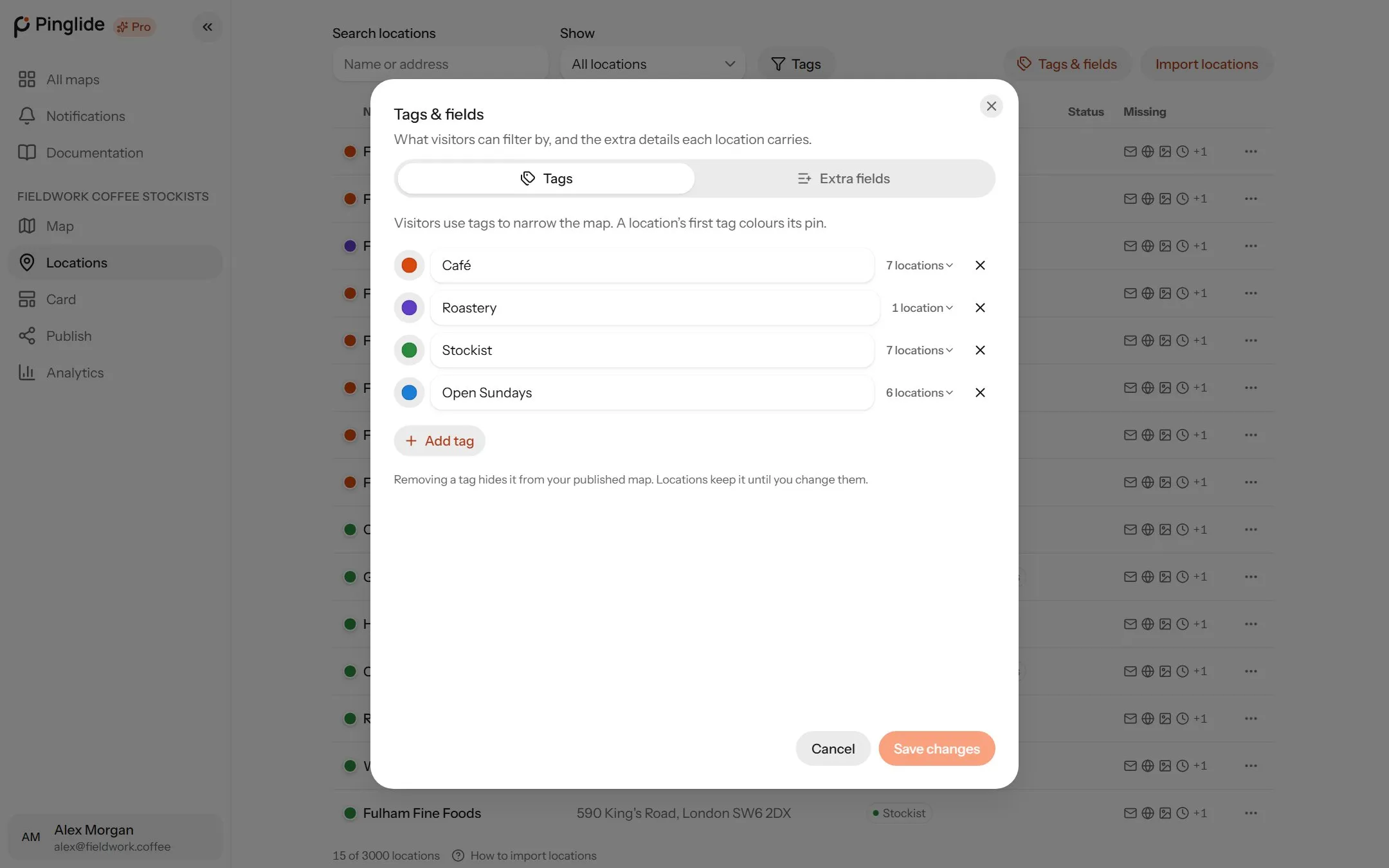
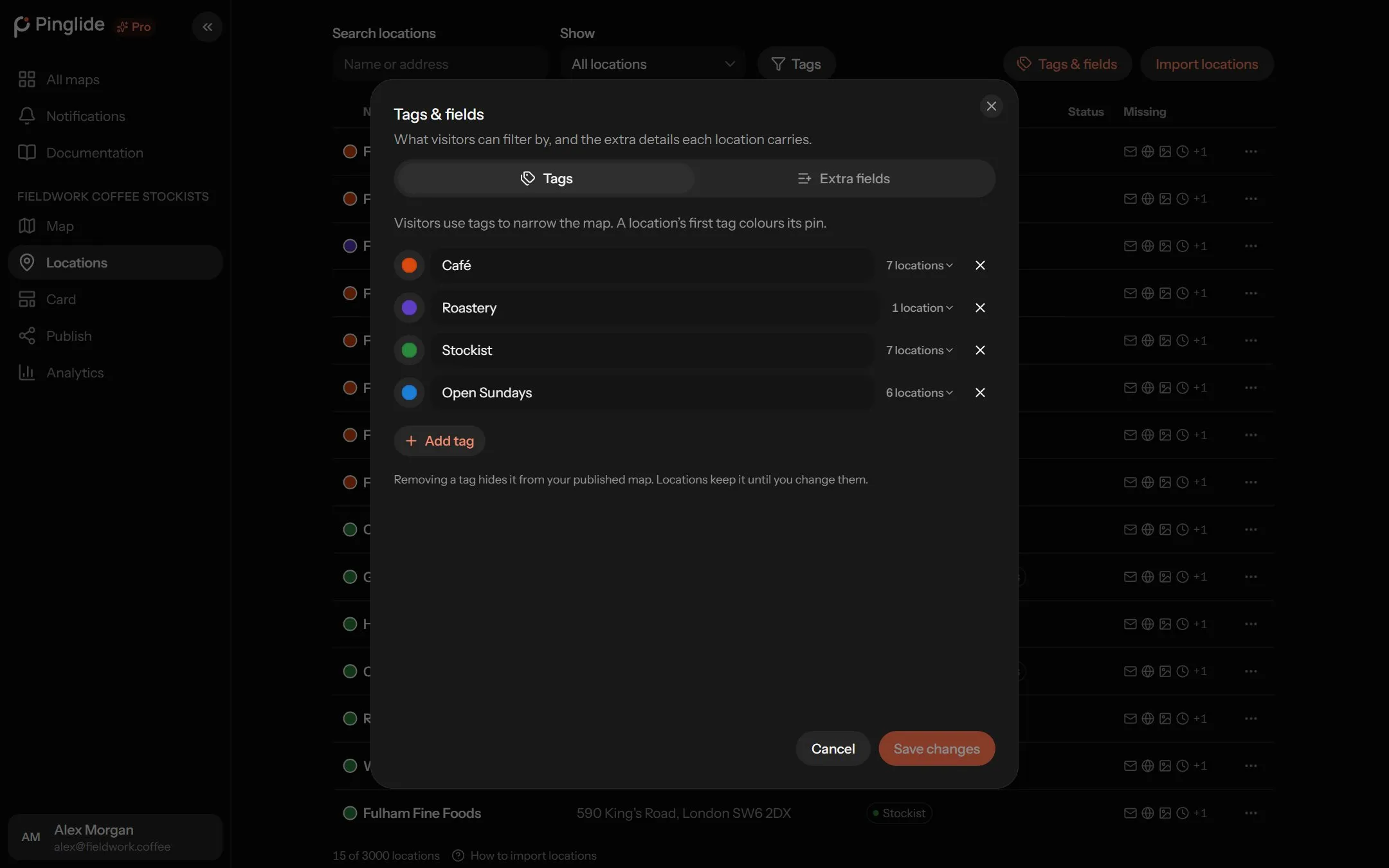
Visitors filter your map by tags. Each has a colour, and a location’s first tag colours its pin.
Open Tags & fields
On Locations, press Tags & fields.
Add your tags
Press Add tag and name it. Press its swatch to change the colour.
Save
Press Save changes.
A count such as 3 locations beside a tag lists who wears it. For tag colours on the card, select the card designer’s Tags block and turn on Use tag colours. A map holds up to 60 tags, a location 20, and a name 64 characters.
Removing a tag hides it from your published map, but locations keep it — adding it back restores everything.
Tagging locations
#In Edit location, pick from Tags, or choose New tag to make one there.
The order matters: the first tag colours the pin. Drag a tag to reorder, or focus it and use Alt with the left and right arrow keys.
To tag many at once, use Select several on the Map tab, then Tag.
Custom pins
#Press the pin button in the Map tab’s toolbar and choose New, or start from a built-in pin: Shop, Restaurant, Café, Hotel, Office or Landmark.
| Setting | Choices |
|---|---|
| Name | Up to 32 characters. Only you see it. |
| Icon | A symbol drawn inside the pin. |
| Fill | The pin’s colour. |
| Shape | Circle, Square or Diamond. |
| Size | Small, Medium or Large. |
| Ring | No ring, Thin, Regular or Thick. |
| Ring colour, Icon colour | Automatic picks one that reads against the fill. |
| Upload an image | Your logo instead of an icon — PNG, JPG, WebP or SVG. |
Press Use pin to save it to Your pins — up to 8 per account. Deleting a pin puts the locations wearing it back on a plain pin.
What colour a pin ends up
#The first of these that applies wins:
- The location’s own colour, from Pin colour in its row menu or a colour column in an imported file. A custom pin with its own fill still keeps that fill.
- The colour of the group the location is in, if it has one.
- For a route stop in no group: the route’s group colour.
- The custom pin’s own fill.
- The colour of the location’s first tag.
- The map’s Default pin colour, set on the Publish tab under Colours.
Groups
#Groups gather locations and shapes in the Map tab’s list. Visitors don’t see groups, but they do see a group’s colour on everything in it. To make one:
- A location’s menu → Create group.
- Drag one location’s row onto another’s.
- Select several, then Group.
A group’s menu offers:
| Item | What it does |
|---|---|
| Rename | Change its name and its colour. |
| Change pins | Gives every location in it the same pin. |
| Ungroup | Moves everything back to the main list. |
| Delete group and contents | Permanently deletes the group and every location and shape in it. |
To take one out, use Remove from group in its menu, or drag it onto that strip.