Docs Build
Managing locations
Find, filter and fix your locations, and fill in their contact details, opening hours, photos and logo.
The Locations page
#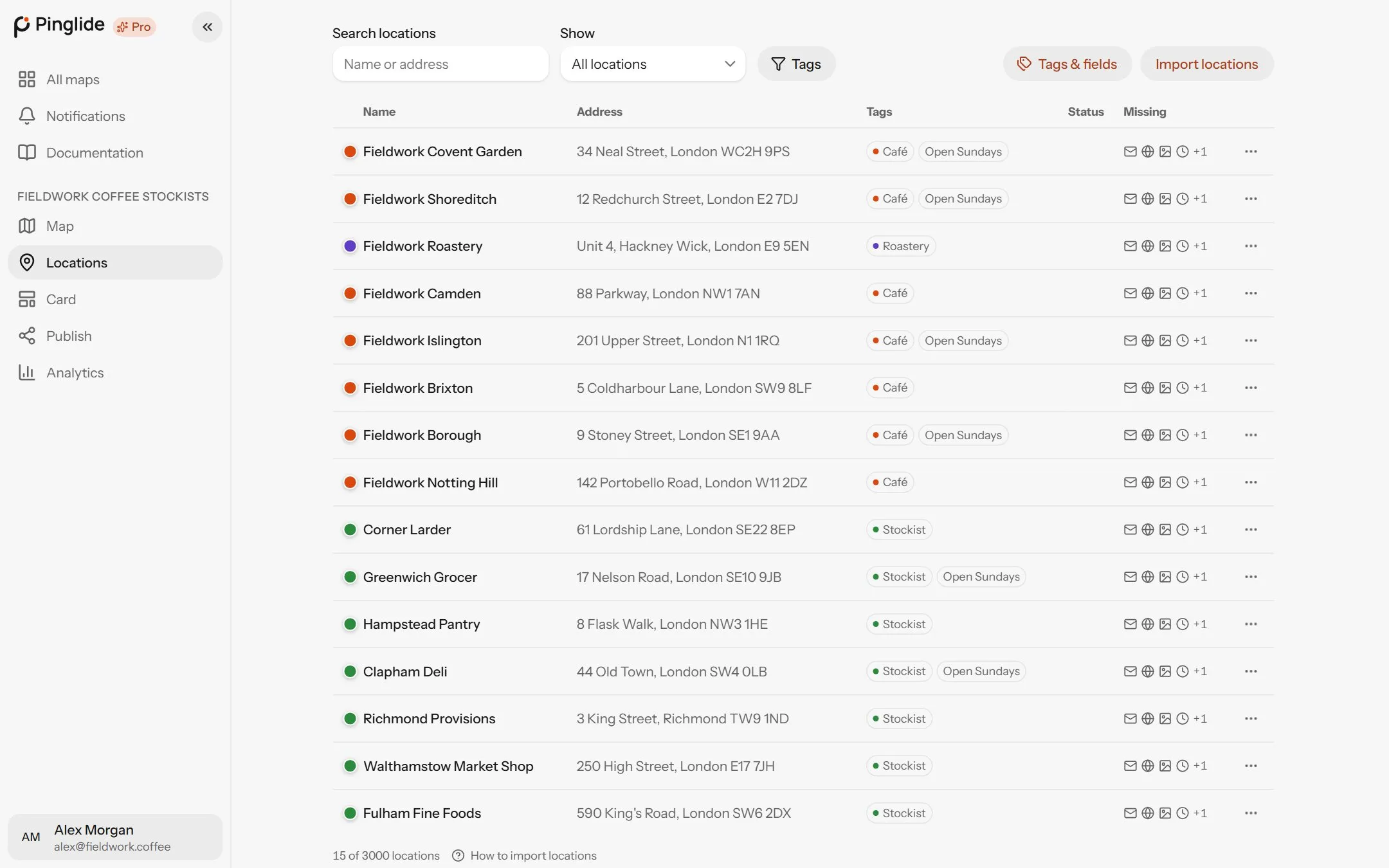
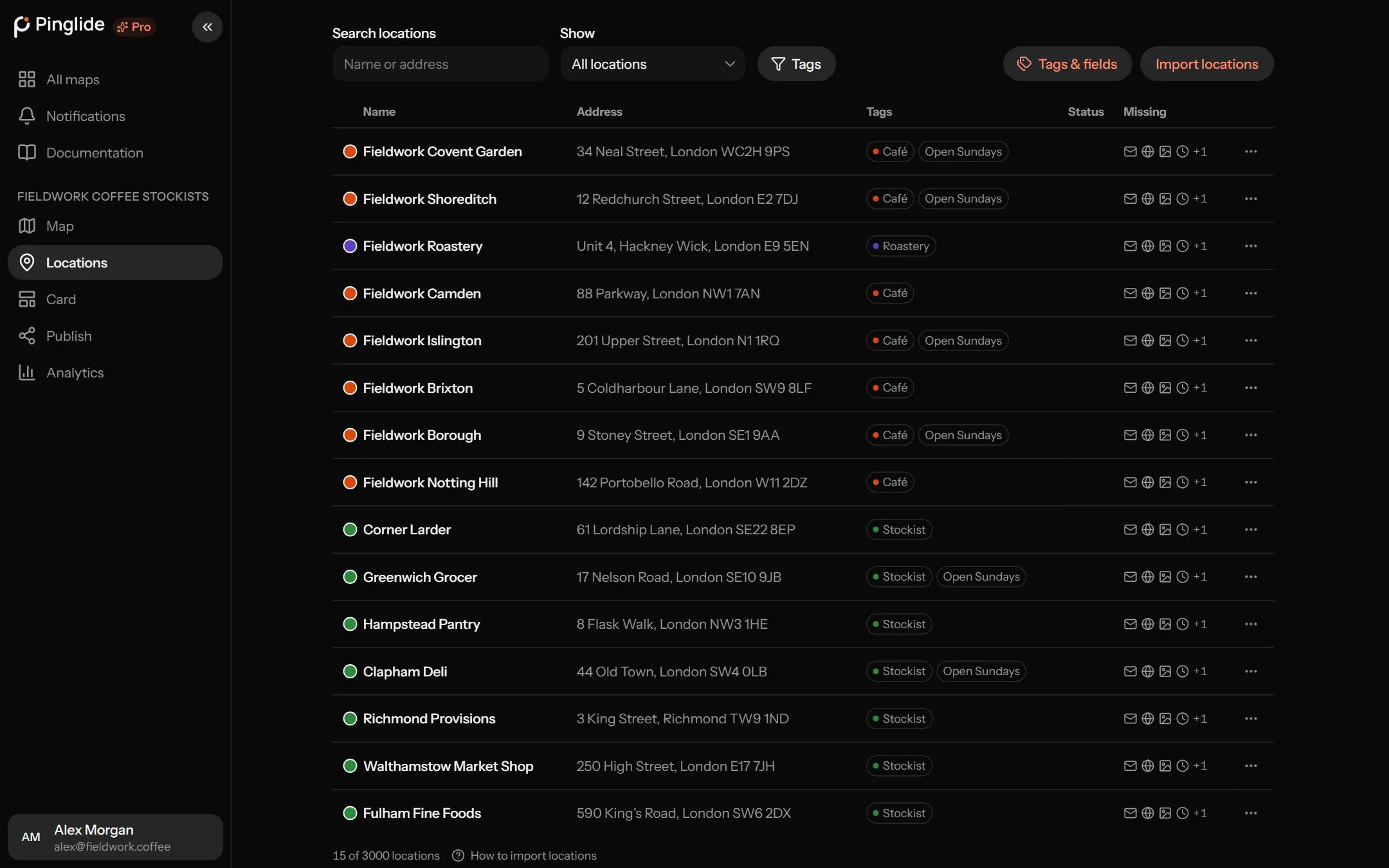
Open Locations in your map’s sidebar to see every location — a table on a wide screen, rows on a phone. Click one to edit it. Along the top:
- Tags & fields — the map’s filters and extra fields. See Tags and Extra fields below.
- Sheet sync — only on a map linked to a Google Sheet. See Google Sheets sync.
- Import locations — see Importing locations.
Single locations are added on the Map tab — see Adding locations.
Finding a location
#Search locations matches name or address. The Show menu narrows the list to locations that need something:
| Option | Shows |
|---|---|
| All locations | Everything on the map. |
| Needs attention | Every location in the next three rows together — start here. |
| Not placed | No address found, so not on the map yet. |
| Rough match | Found only as far as a street or town. Check the pin. |
| Approximate address | Matched to the street, not the building. Adding the house number usually fixes it. |
| Missing details | No phone, email, website, photo, opening hours or description. |
Tags filters by tag — several shows locations with any of them, Untagged those with none. Clear tags resets it.
Reading the list
#| Column | What it tells you |
|---|---|
| Name | What the location is called. Click it to edit. |
| Address | Couldn’t find an address means the lookup failed; bare coordinates mean it was never looked up. |
| Tags | Up to three, then a count. A dot marks the tag that colours the pin. |
| Status | Not placed, Check (a rough match) or Approximate. Empty means all is well. |
| Missing | An icon for each detail the location doesn’t have. Hover for the list. |
N of M locations under the list is this map’s count against your plan’s limit.
Editing a location
#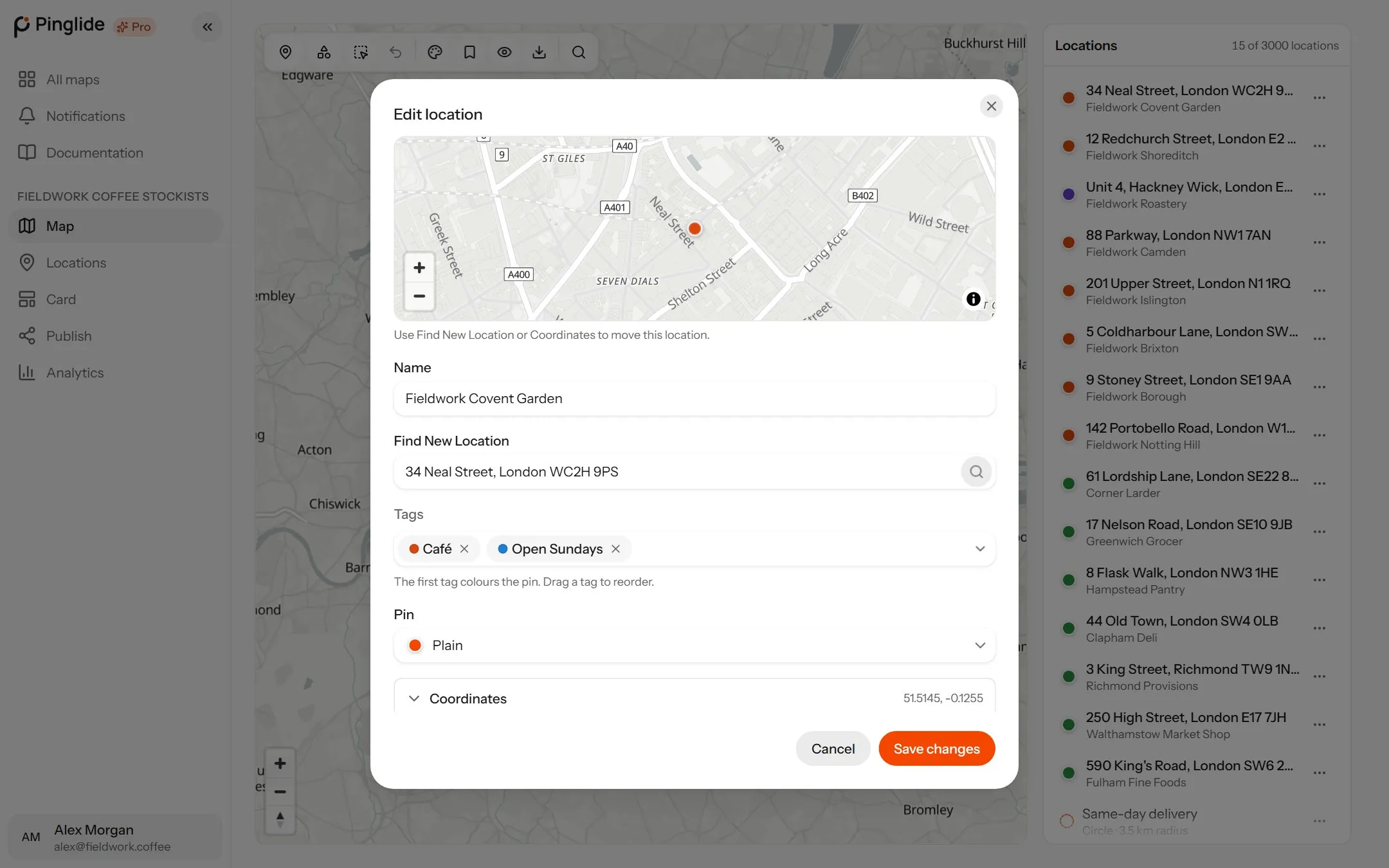
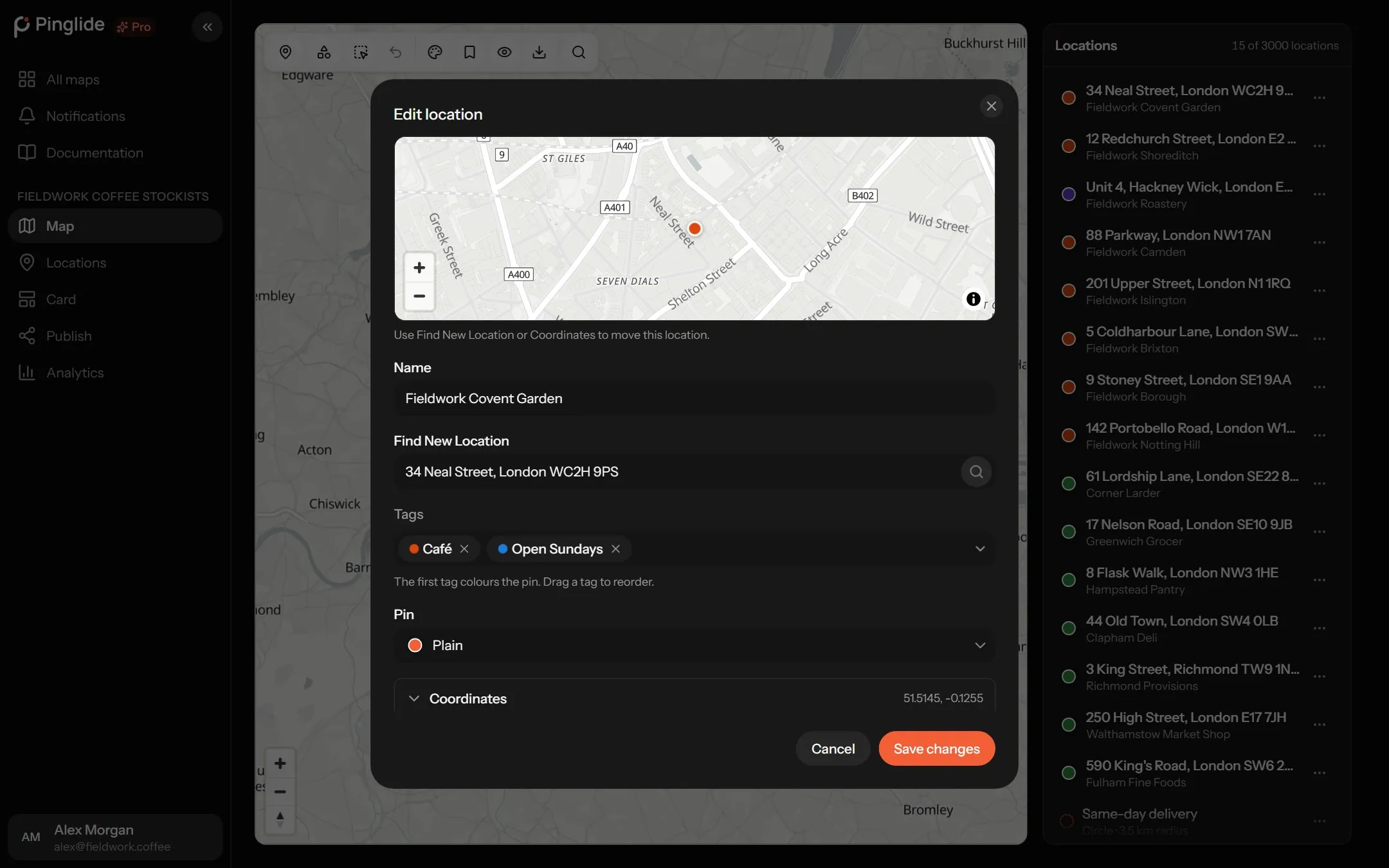
Opening a location brings up Edit location. Nothing is saved until Save changes; Cancel discards everything, photos included.
Move the pin
Drag the pin on the small map at the top. A pin moved by hand stays exactly where you put it.
Name it
Name is the only field every location needs.
Find a new address
Type the full address into Find New Location and press Enter. Pick one of up to five Address matches to move the address and pin. No matches? Add a city or postcode, or drag the pin.
Tag it and choose a pin
The first of the Tags colours the pin; drag to reorder. Pin picks your own pin or a built-in one. See Tags, pins and groups.
The rest is in folds below, each showing what it holds or Not set.
| Section | What goes in it |
|---|---|
| Coordinates | Latitude and Longitude, for when the address search can’t find the place. |
| Contact | Phone, Email and Website (with its https://). |
| Extra fields | Your own fields, when the map has some. See below. |
| Opening hours | The week, one day at a time. See below. |
| Description, logo and photos | Up to 5,000 characters, the location’s own logo, and up to 8 photos. |
Opening hours
#Open or close a day
Press a day to open or close it. A newly opened day starts at 09:00–17:00; a reopened one gets its last times back.
Set the times
Type 24-hour times like
09:00, or press the clock and pick Opens and Closes.
Times are the location’s local time; 18:00 to 02:00 runs past midnight. Visitors’ cards show Open now or Closed now.
Each day holds one opening period. For a lunch break, use the full day’s times and mention the break in the description.
Photos and logo
#| Photos | Logo | |
|---|---|---|
| How many | Up to 8 per location | One per location |
| File types | JPG, PNG, WebP or AVIF | JPG, PNG, WebP or AVIF |
| Largest file | 5MB each | 512KB |
Press Add photos to pick several at once. The first is the Cover; press the star on another to change it. Everything uploads on Save changes.
The logo is this location’s own brand mark, shown on its card — not the image on a pin, which is a custom pin.
Extra fields
#For anything the built-in fields don’t cover — a booking link, a menu, a dealer code.
Define the field once, for the map
Press Tags & fields → Extra fields → Add field. Give it a name, a Type (Text, Link, Phone or Email) and Show as a Detail row or Button, then Save changes.
Fill it in per location
It appears under Extra fields in Edit location; leave it empty where it doesn’t apply. A map can have up to 10.
Filling in details from the map
#On the Map tab, click a pin to open its card. Anything missing shows as a dashed + — Add a description, Add opening hours, Add photos and so on. Fill it in and press Add.
Deleting a location
#In the row’s menu (⋯), choose Delete, then Delete location. Visitors still see it until you publish again. The same menu offers Find address again when a lookup failed.